|
Making Vista look like Win2k/WinXP.
So, several times now I have been asked some version of the following question: "Hey Clem/Resident Vista guru/Motherfucker: Is there any way to make Vista's explorer interface look like the 'classic' one from Windows 2000 (Motherfucker)?" First of all, my mother is a saint. I would never. Secondly: While you can't make Vista's windows look exactly like the old explorer window we can make it close enough to prevent aneurysms. I've typed up a guide below. Some pictures can be clicked on to view a larger version.
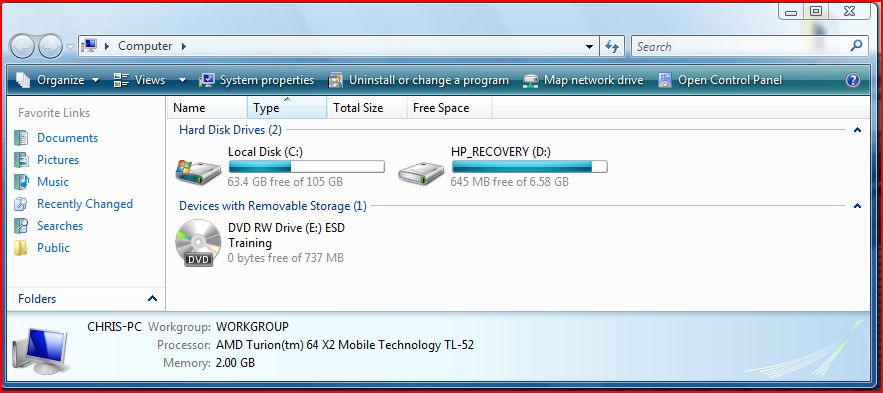
So, starting from here:
We want to end up here: But first we're going to start with the icons on the desktop... By now you've probably discovered that there is no 'my documents icon'. Just an icon with your username that leads to your profile folder. How do we fix that?
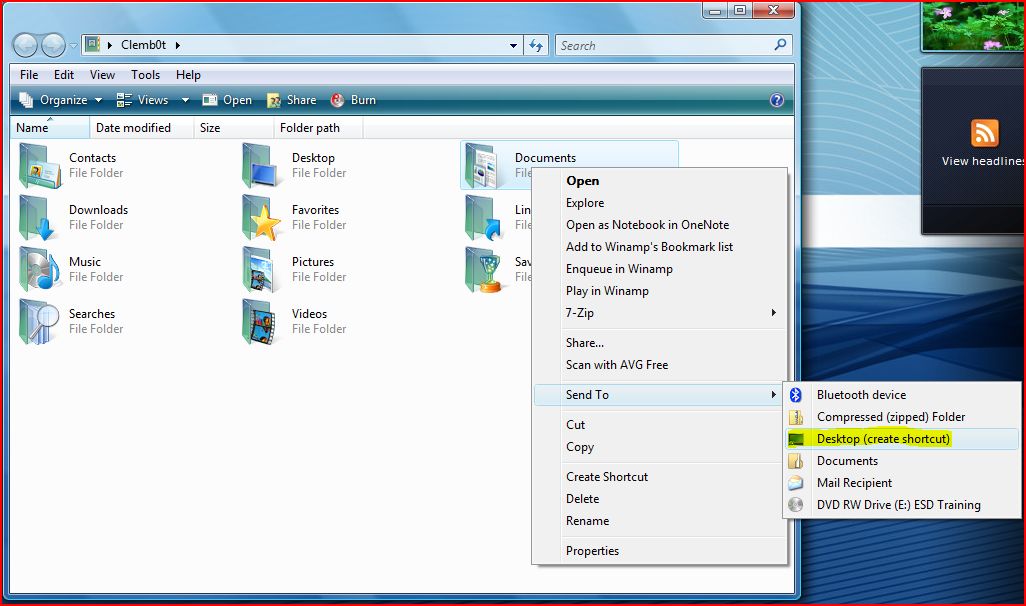
This is definitely not the documents folder:
Double-click that item and then right-click on the 'real' documents folder. Then select 'send to --> desktop'
Find your new icon:
Change its name: Now lets get rid of all that extra icon shit you'll never use...
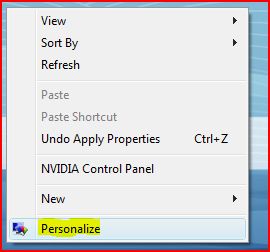
Right click on the desktop and select 'Personalize':
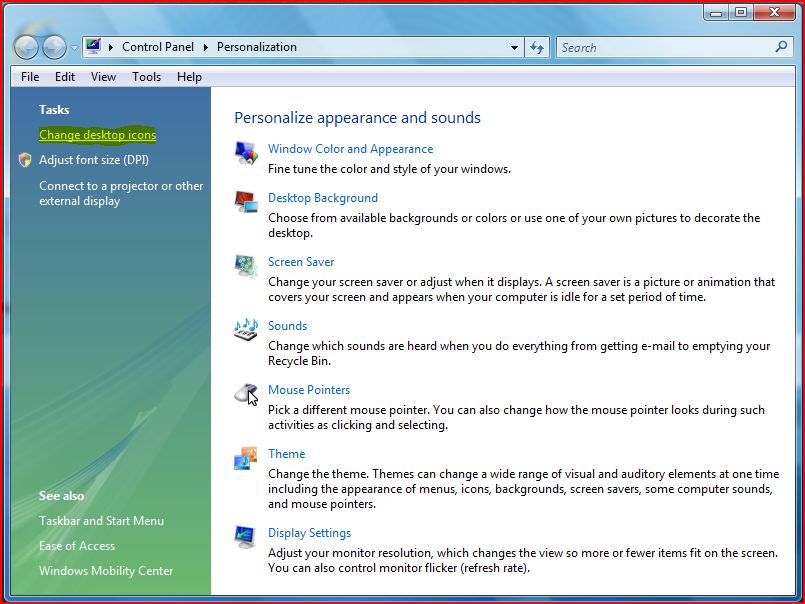
Find the link as shown:
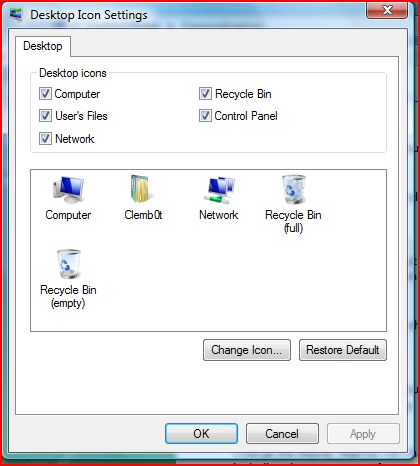
Then uncheck the appropriate check boxes:
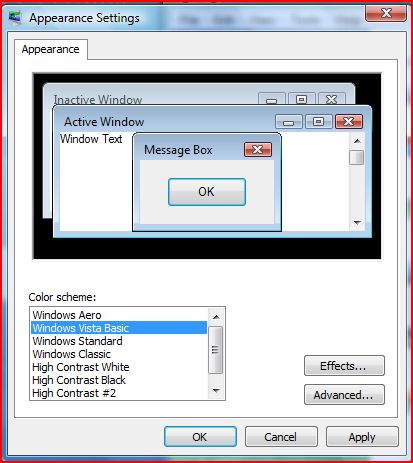
While we're at it, you can turn off the Aero interface if you want. Going back to the personalization screen, select 'Window Color and Appearance'.
Then click on link and you'll get the classic appearance settings menu: Then select something like "Windows Classic" "Windows Standard" or "Windows Vista Basic". (Note: Depending on which theme you choose you may have to change your start menu settings again). The advanced button lets you change individual things like window colors and fonts. Now its time for modifying the start menu!
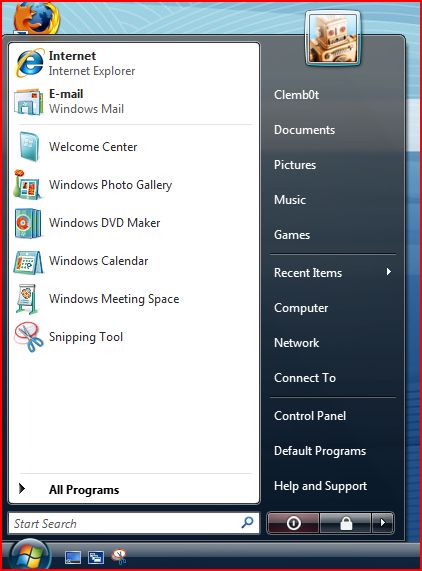
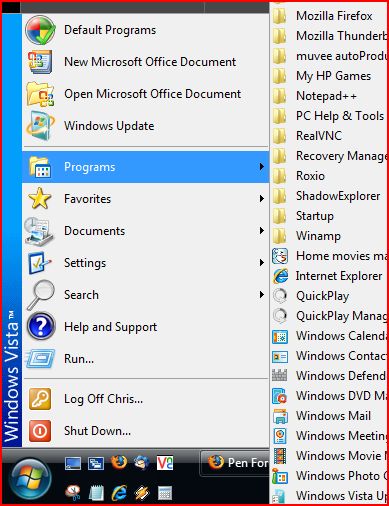
We want to move from this:
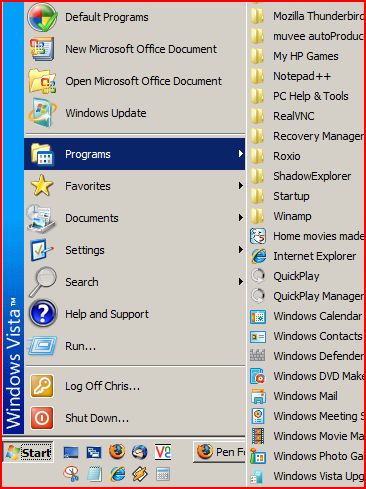
To this:
Or for the truly classic look possibly even this:
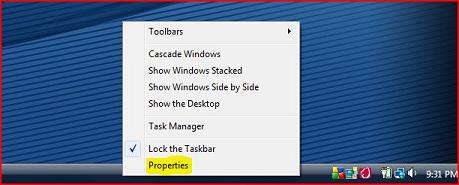
To fix this one, right click on start bar and select properties:
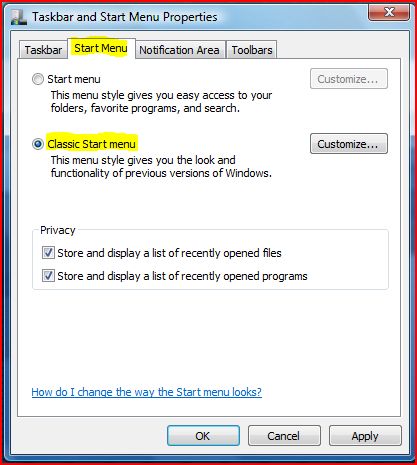
Select the start menu tab and pick classic menu: This choice fixes start menu, and also puts a crapload of new icons on the desktop. (For more options on Start Menu settings, select the 'Customize' button from the start menu properties).
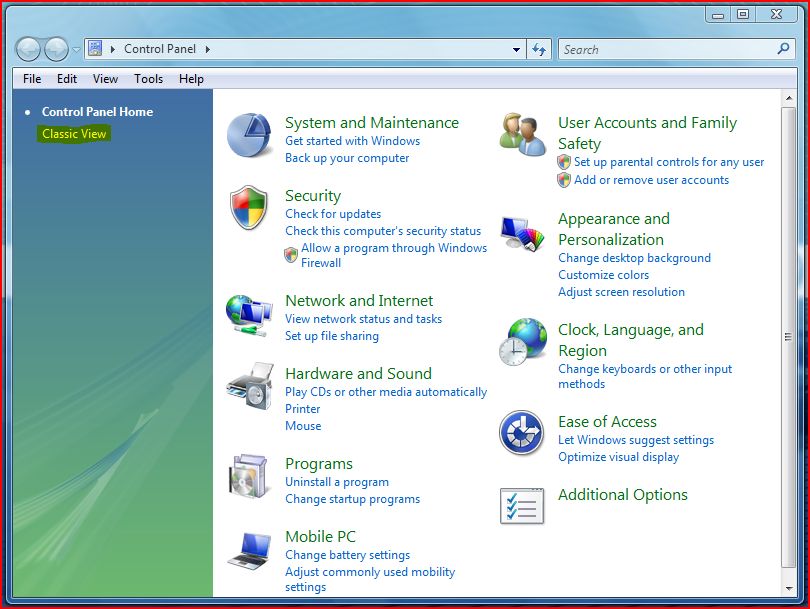
Ok... now lets quick fix the control panel. When you open the control panel it looks like this bullshit:
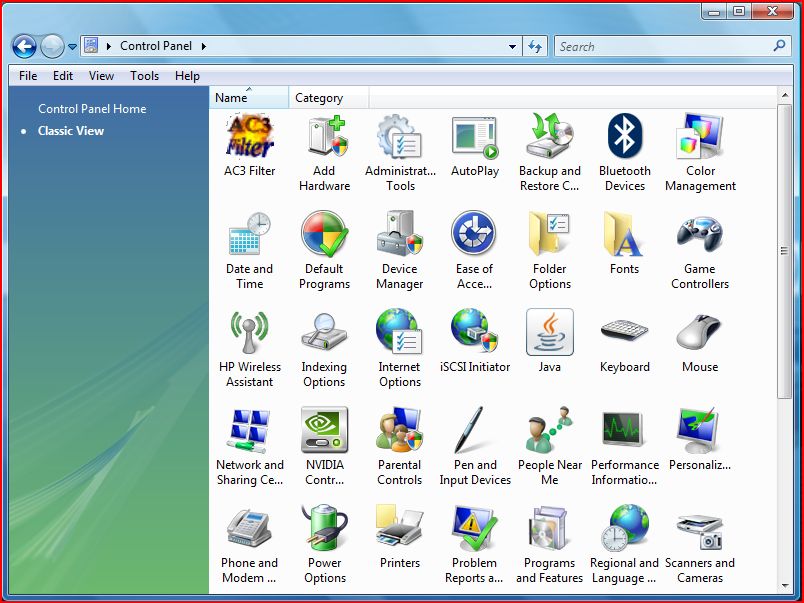
Click on the "Classic View" link and... By the way, looking back at the explorer windows, try holding down the "Ctrl" key while you move your scroll wheel on the mouse. No more looking for that 'view' menu!
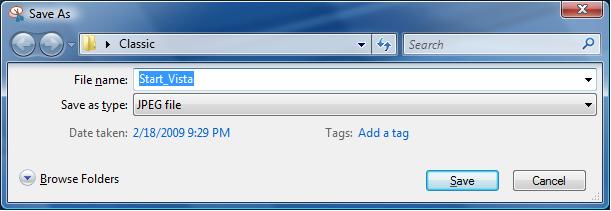
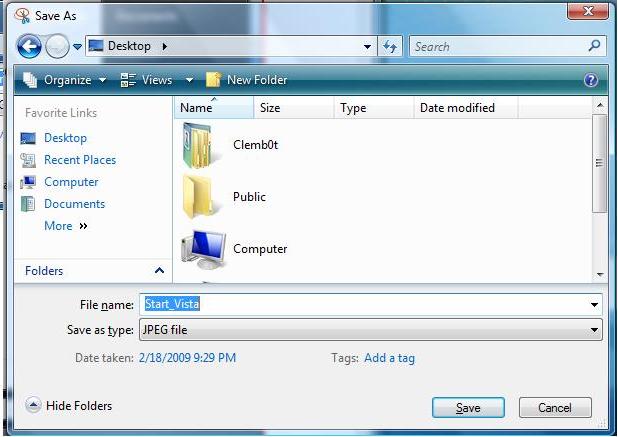
One other thing that bothers me is the save menus that appear... where is my option to click on "Desktop" or something besides my documents folder or profile?
Its hidden on that link that says 'Browse Folders'... Now we tackle the explorer window itself. First, open up the "Computer" window:
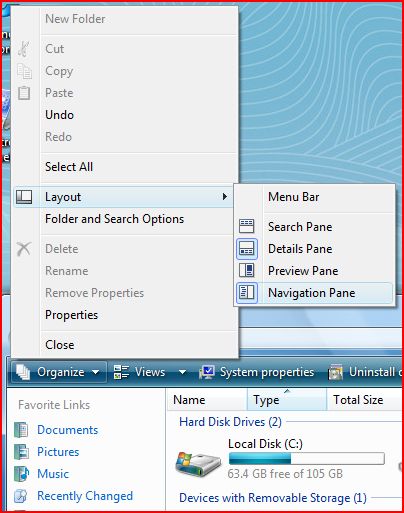
Then lets kill that annoying 'Navigation Pane':
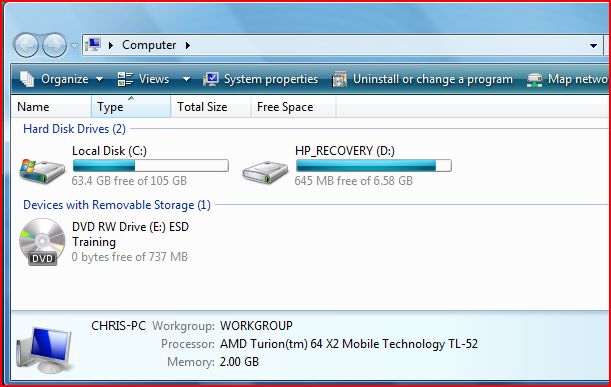
Dont things look better?
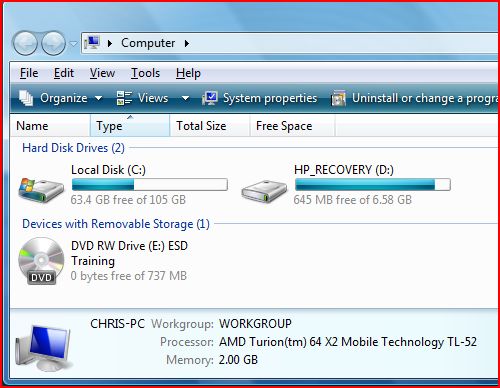
Now, press the "Alt" button on the keyboard, and notice that the menu bar appears:
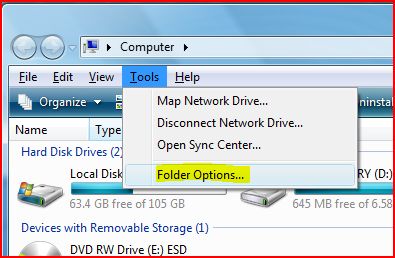
Click on the Tools pull down menu, and select Folder Options:
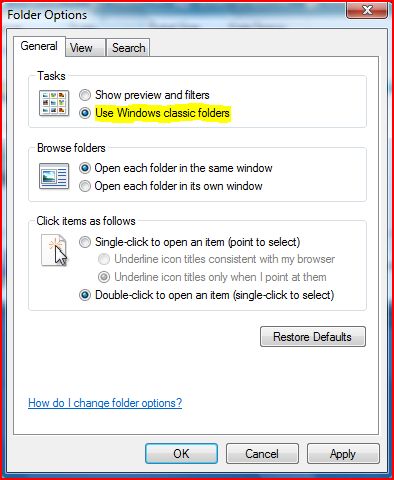
Then select the Windows Classic Folders:
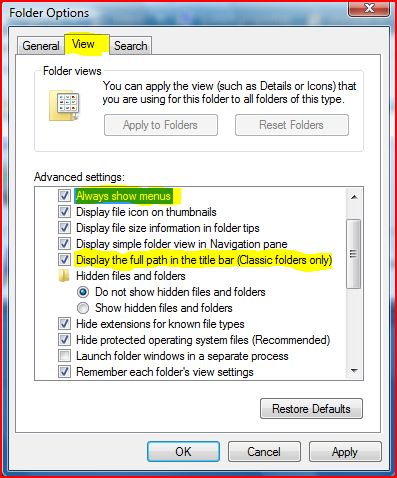
Go to the view menu and make the applicable changes as marked:
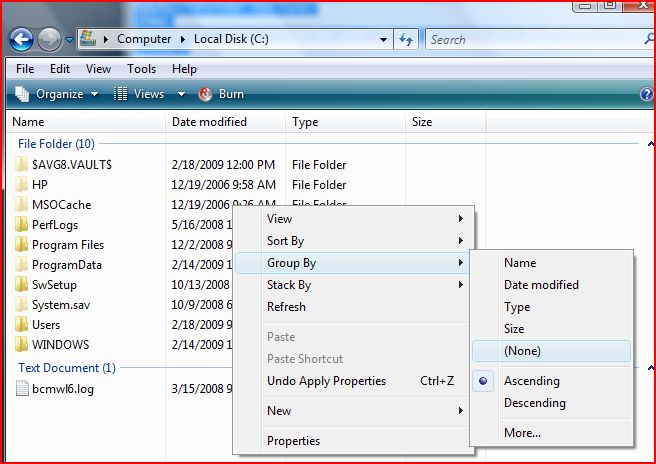
Once that has been completed, close the menu windows and right click on explorer window. Now you want to click on the 'Group By' settings and change the option to 'none':
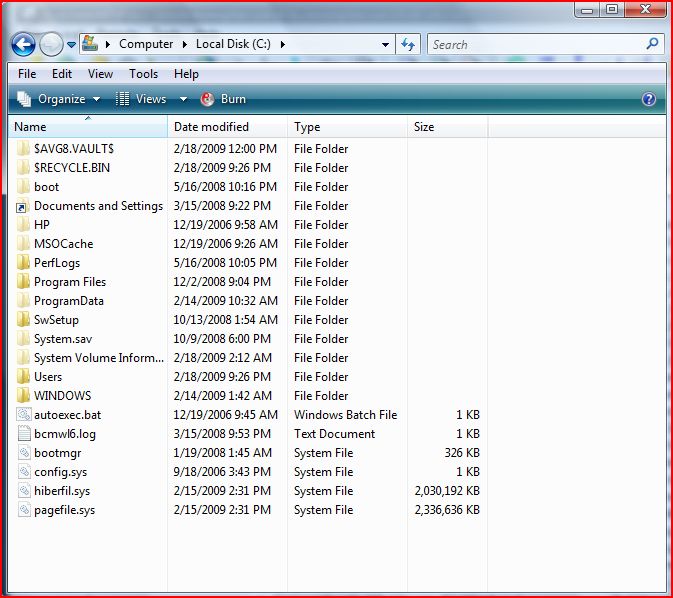
Once this has been completed your explorer window should look like this: Good luck, and thank you for your questions.
Windows Vista is a registered trademark of Microsoft. Please note that any opinions expressed are those of the author himself, and not necessarily those of penismightier.com. Use these directions at your own risk.
Copyright 2009.
|