|
Making Quicktime Less Annoying. I like the Quicktime player. I really do. However, over the last several quicktime upgrades I have done I've been disappointed at a few 'features' that were not obviously removable. The first thing that annoyed me was the quicktime Taskbar icon. It refused to disappear. If I killed it in the registry or using msconfig it would come back later, after a file played. For some reason unchecking the "task bar icon" box didn't do what I thought it was supposed to do. I finally found some documentation (thanks to annoyances.org) that assisted me in killing it for good. I'll outline a proceedure on this page. The second thing that annoyed me was Quicktime's insistance on being the default player for all compatible video and audio files in Internet Explorer. Nothing like going to a page with an MP3 on it, clicking on it hoping to download, and having quicktime come up instead. Or, even better, the wonderful "In order to display this page fully, you need to download some more crap from quicktime." page that would pop up in the pen forums periodically.
Of course, step one, if you haven't already, is to download quicktime here and install it.
Now, on to the actual content of this document:
Killing the Quicktime Task Bar Icon for good
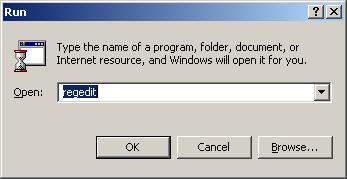
Standard Disclaimer: First of all, open regedit.
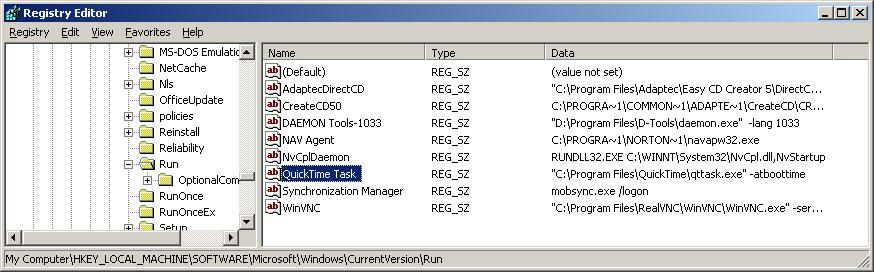
Browse to the key:
DO NOT START QUICKTIME OR REBOOT YOUR COMPUTER until we finish the next steps.
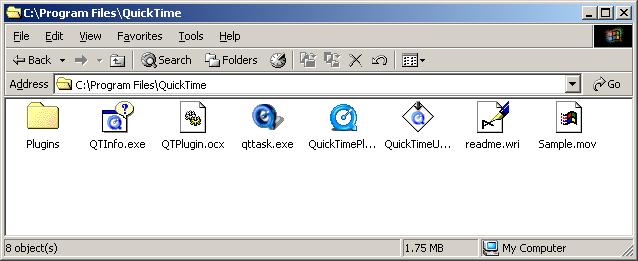
Browse to the quicktime program folder (default: C:\Program Files\Quicktime).
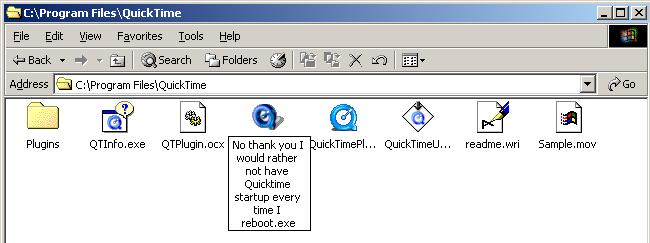
Rename this file to the name of your choosing.
Close your windows, and you're done. Once you reboot, quicktime will no longer appear in your taskbar!
Now.... how do you keep it from hijacking the MIDI and MP3 files that would otherwise act civilized in your web browser?
Quicktime Internet Browser Plugin Settings
This one is quite simple. (Not as simple as an imac, maybe, but still simple).
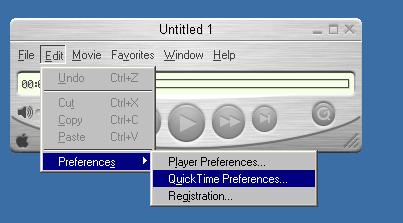
First:
Then:
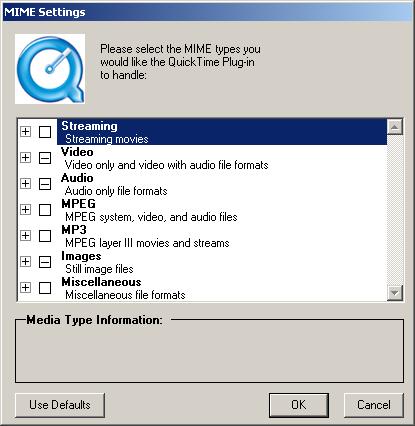
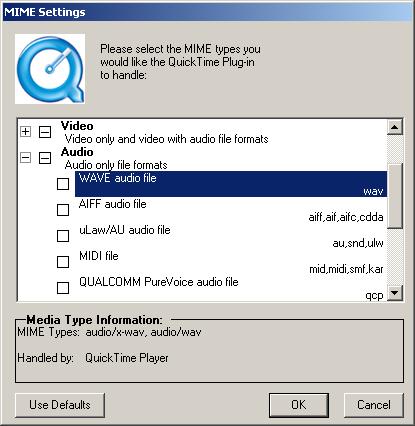
Under the "MIME Settings" window you will see various settings for audio, video, and streaming.
Go through the options here and disable the items you dont want quicktime to play in your web browser. Settings made in here will not affect the rest of the quicktime program, only how it affects your web browser.
I personally recommend disabling anything under streaming and audio, and removing any reference to avi files, but change what you want.
You may want to take advantage of this time to check the other quicktime settings too.
Then close quicktime, and try to visit an internet page with embedded audio or video files!
~fini~
Quicktime is a registered trademark of Apple Computer Inc. Please note that any opinions expressed are those of the author himself, and not necessarily those of penismightier.com. Use these directions at your own risk.
Copyright 2003.
|